Article Goal: Create the Storage Account and a Storage Account Table to store configuration information.
Now that we have created our service bus, let’s move on to create our storage account. The storage account in Azure is used for three main functionalities.
- Queues: similar to service bus queues, but minor different usages. For detailed list on when to use each one, please refer to: https://docs.microsoft.com/en-us/azure/service-bus-messaging/service-bus-azure-and-service-bus-queues-compared-contrasted
- Blob storage: store large amounts of unstructured object data (text or binary)
- File storage: shared storage for files, shared folders on the cloud
- Tables: No-SQL key-attribute store for structured data
In our project, we’ll be using the storage tables to store configuration data, such as the URL for the Web API used to store the customers in the SQL database. Also, as you’ll see in the next article, we’ll use the same storage account blob storage feature as a store of the Azure functions. For detailed information about Azure Storage accounts, you can go to https://docs.microsoft.com/en-us/azure/storage
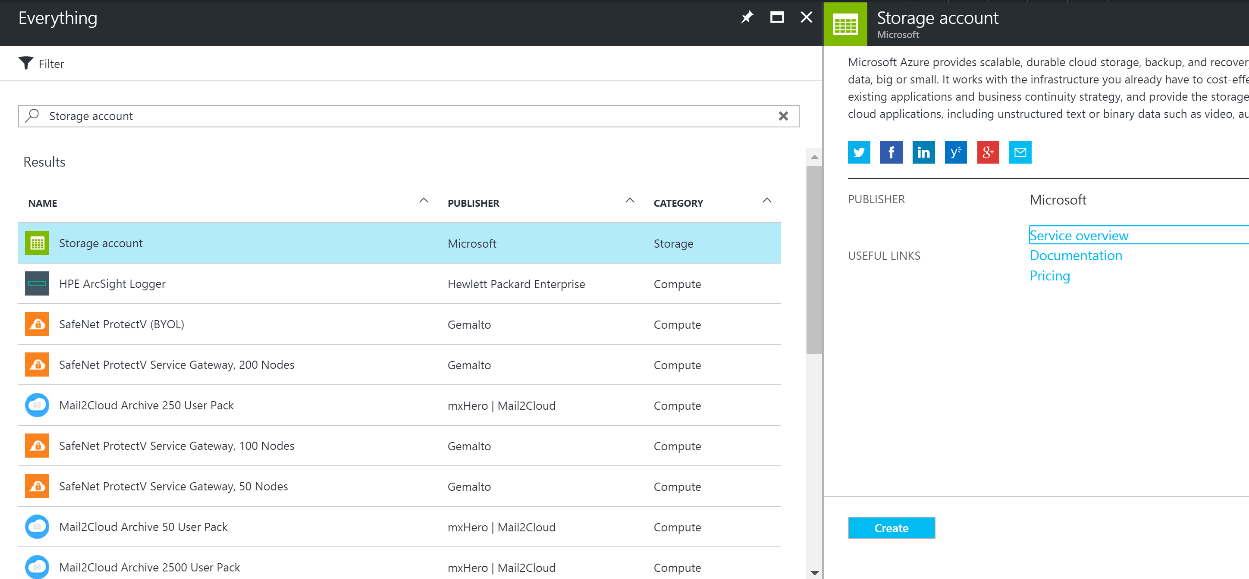
So, let’s start. First, open the Azure portal and navigate to our resource group and click “+Add” to add a new product. Enter storage account in the search textbox, select “Storage account” and click “Create” in the opened blade.
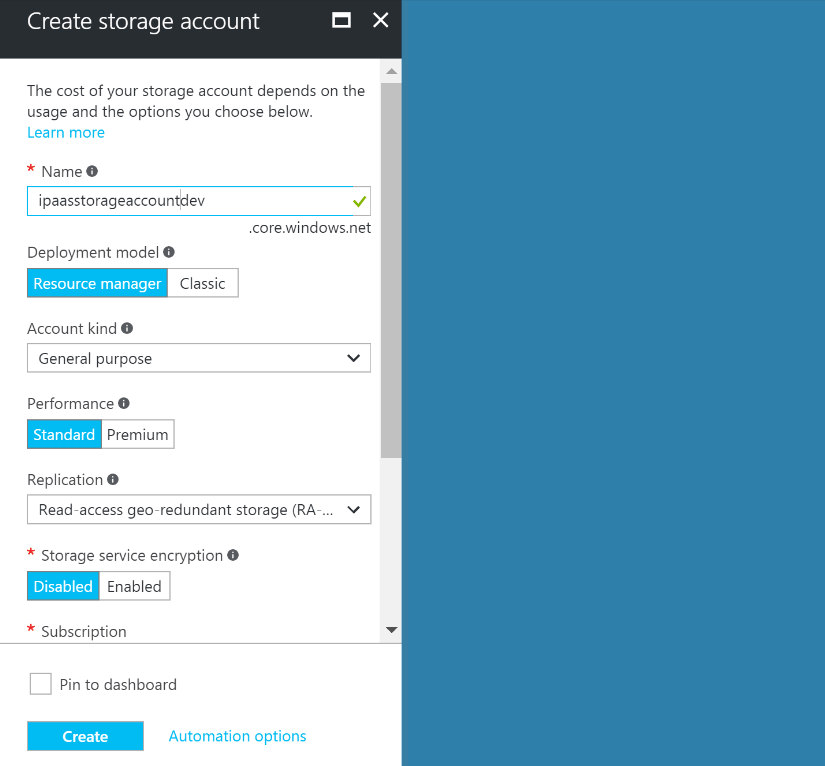
Fill the name and keep the default values for other properties, then click “Create”
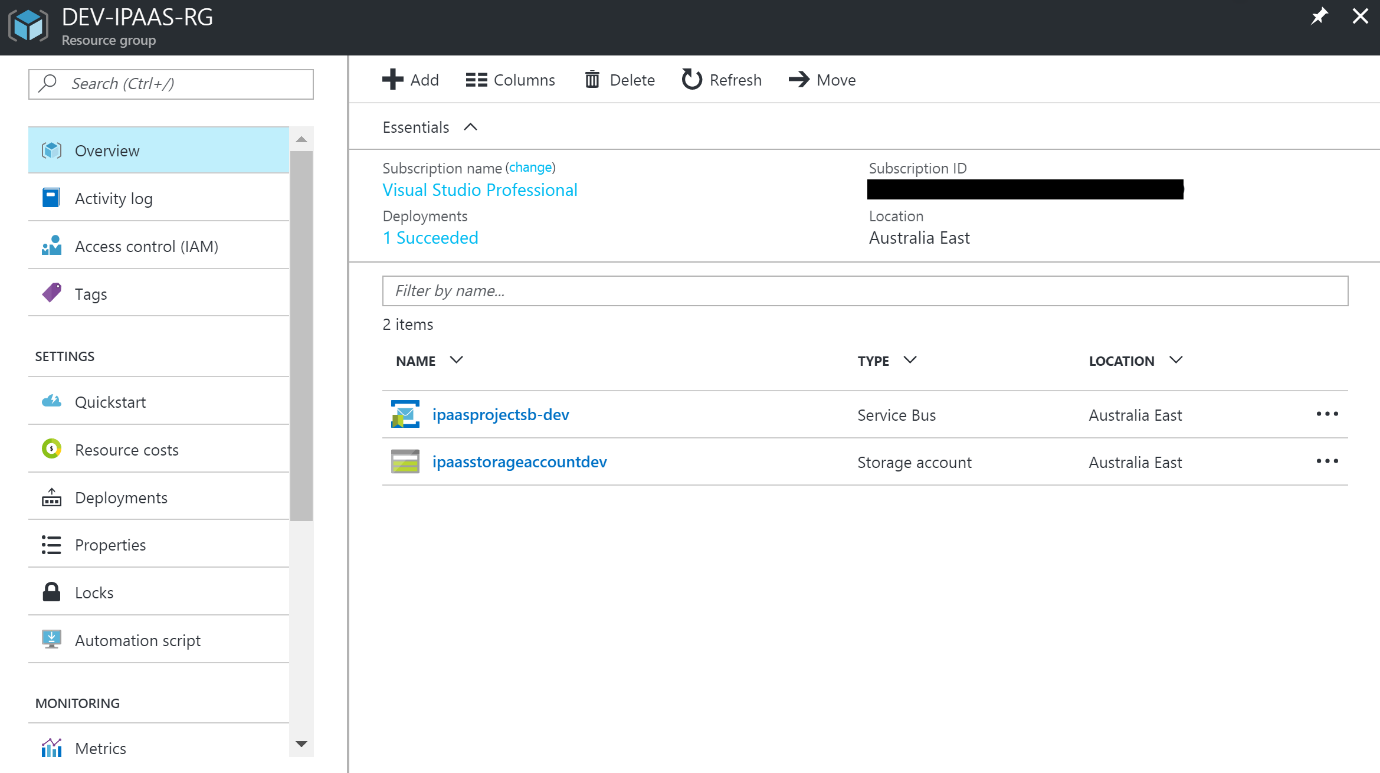
Once the storage account is created, it will appear among the resource group’s items
Now we need to get the storage account security information to be used later. So click on the storage account, then “Access Keys” on the left pane, and copy the storage account name and “key1” fields. We’ll use both values in the next step.

As with the service bus, to create the storage table we need to use an external tool. I usually use a tool called “Microsoft Azure Storage Explorer”. Make sure you download, install, and open it. Once opened, click on the small green “plug” icon on the top left of the screen to open a dialog box that allows us to connect to a storage account. Select “Use a storage account name and key” option from the available options and click “Next”
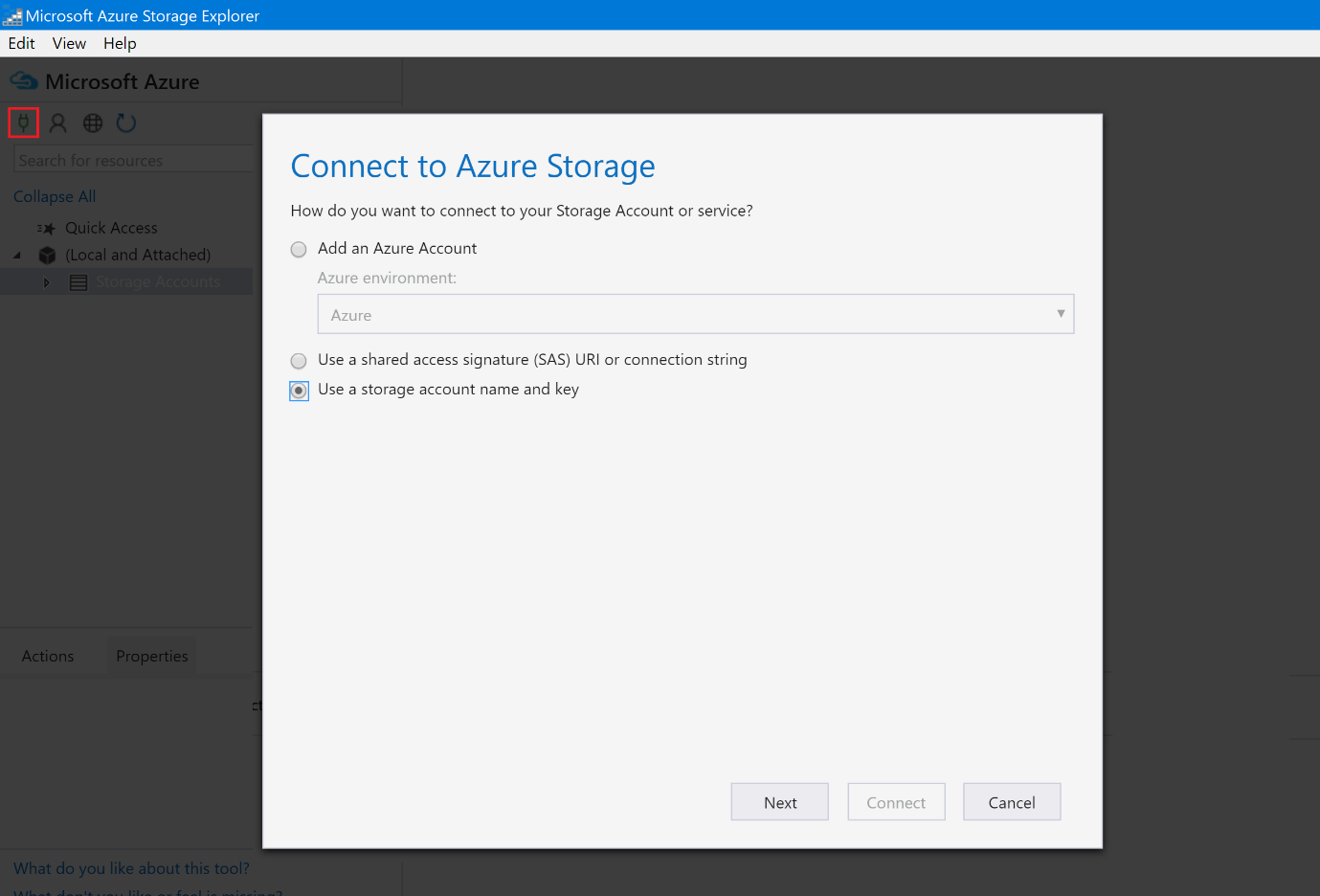
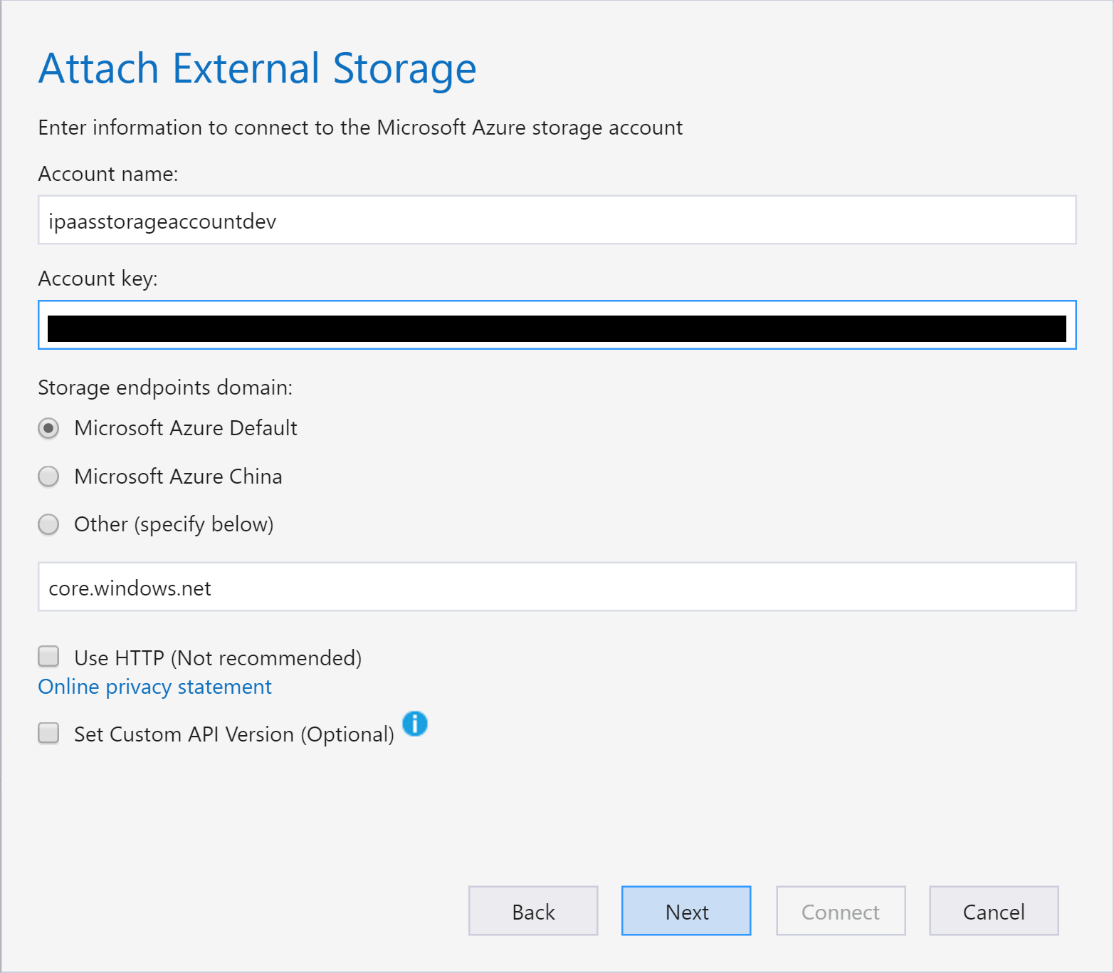
Enter the security information copied previously from the portal into the Account name and Account key fields, then click “Next”, then “Connect” in the final confirmation screen.
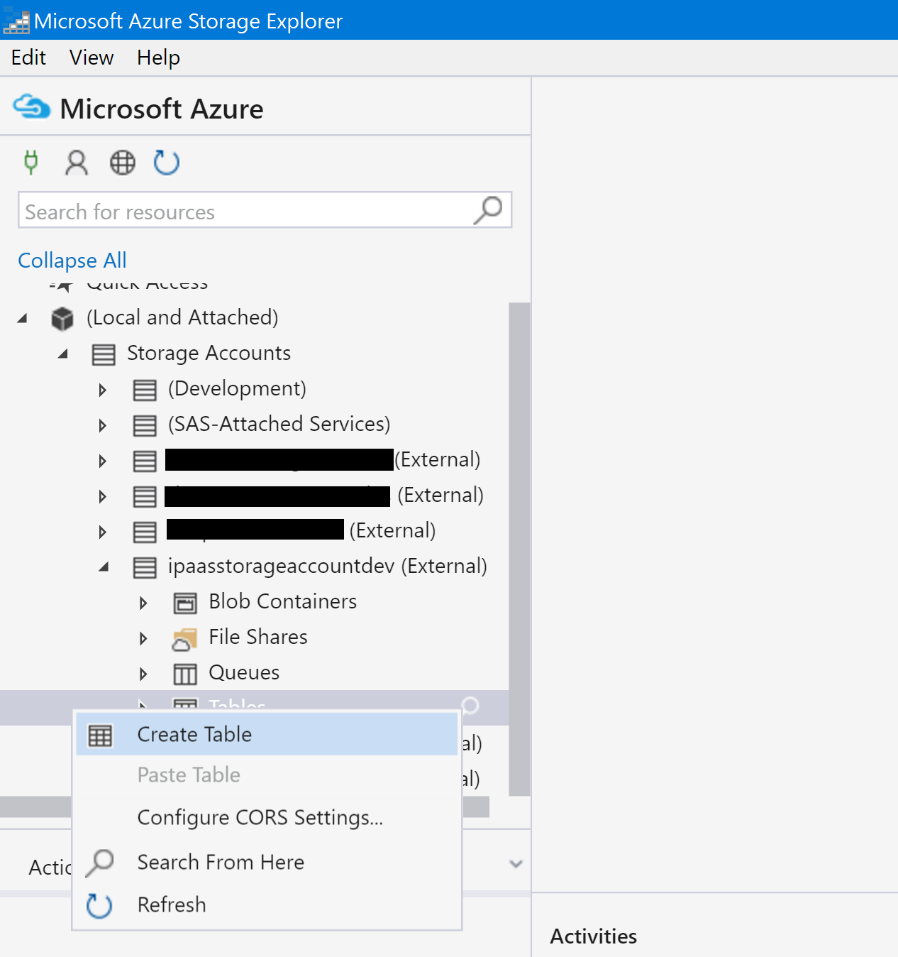
On the main screen, expand the storage account, right-click “Tables”, and select “Create Table”
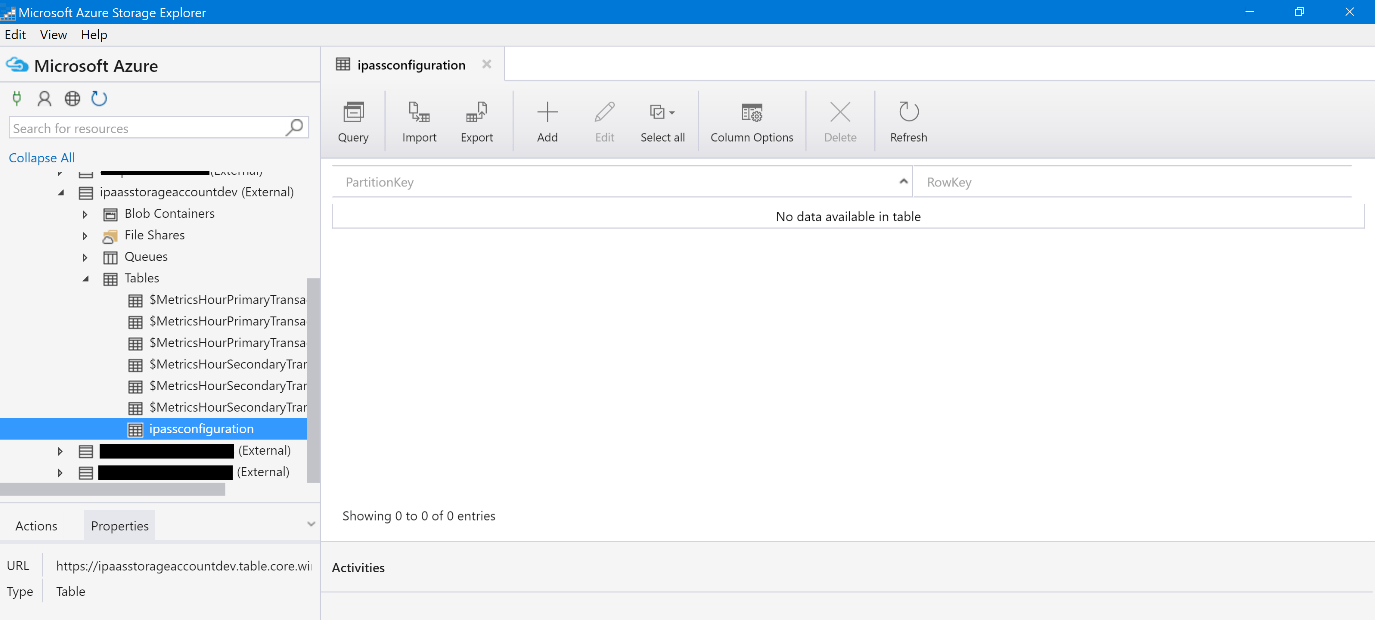
Enter “ipaasconfiguration” as the name and press “Enter”. Your screen should look like:
Click “Add” from the top menu to add a row, enter “config” as the PartitionKey, and “WEBAPIURL” as the RowKey, then click “Add Property” button and name it “URL” with a value of https://devipaasentitiesapi.azurewebsites.net
Conceptually, the Azure Storage Table can span multiple partitions. The PartitionKey field is the unique identifier of the partition. The RowKey field uniquely identifies a row in the partition. So, a combination of PartitionKey and RowKey must be unique in the table.
So now, our table will look like:
