In this article, we’ll build on the previous one, Recipe functions in Workato, to show you how to implement API paging in Workato.
Recall the API we called in the Get Shipment Confirmations function? This API actually has paging inbuilt and as such, we need to keep calling it incrementing the page number query parameter until the result set is empty, as you can see below in the sample Postman call

Updating the Get Shipment Confirmations Function
First thing we need to do is to update the Get Shipment Confirmations function to rather than call the API once, to keep on calling it as long as there’s results coming back, each time incrementing the page number, as you can see below

As you can see, we created a page number variable, and a list variable to store all shipment confirmations. Then we iterate until the API response is empty. In each iteration, we call the API with the right page number, increment the page number, and for each shipment confirmation returned from the API call, store that shipment confirmation in the list.
Next, we create a string output variable, iterate over the list and build the output string from the list, as shown below

Testing the function validates our logic, as seen in the output debug window

Updating the Process Shipment Confirmations Function
Now that the data retrieval part is done, we’ll have to further update the processing part to change the json result set into a CSV format. To do that, we first create a list variable to store the flattened shipment confirmations:
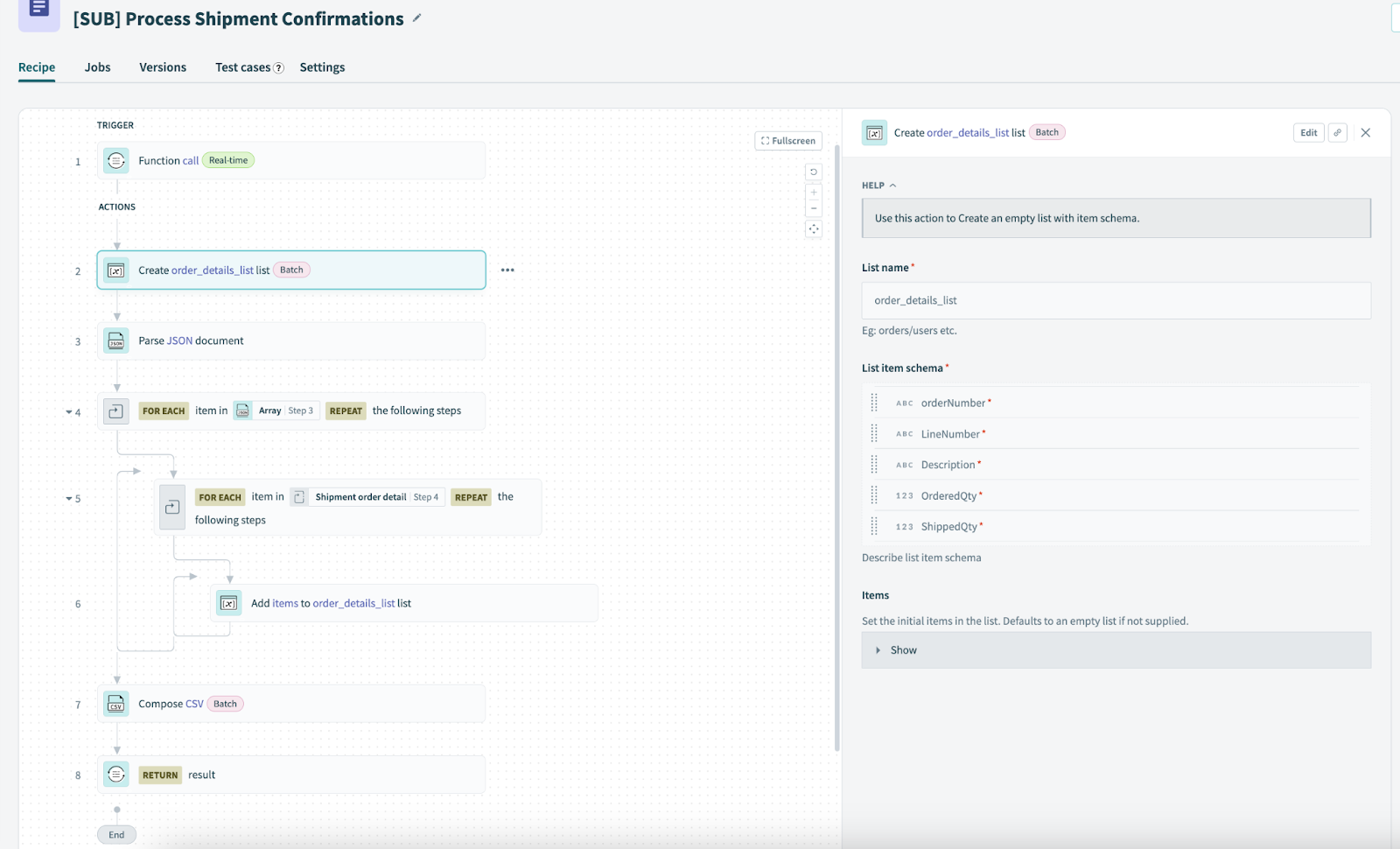
After parsing the JSON input (pre-existing step), we iterate over the shipment confirmations and the detail records and add the information from each record into our previously created list, as shown below

Finally, we change the compose CSV action to source from the populated list

Testing the function validates our logic as shown in the below snapshot

One more thing we would like to highlight. Having a close lookup on the debug window, one can notice that Workato only displays the data from the last iteration of a loop. There’s no way to view the data in all previous iterations. To validate that, check the “is_last” element value in the debug window. You’ll notice it always evaluates to true. This means you are viewing the data from the last iteration of the loop. We will solve this issue using Workato’s logging service in the next article, stay tuned!

Testing the Recipe
Last thing to do here is to test the main recipe to verify our work is functional end-to-end. Running the recipe surely does that and we can see the results once we click over the Send Shipment Confirmations function

Also, navigate to the File Manager to view the output file saved there

Conclusion
This concludes our article to implement API paging in Workato. In this article, we showcased how to invoke an API in a loop, and along the way, we saw how to work with loops & lists in Workato. That’s it for now, see you in the next article. Happy learning!