In this article, handling complex file structures in Celigo, we’ll showcase how we can create a Celigo flow that reads an unstructured file (such as an excel or CSV sheet) that consists of Header and Details information.
Input File
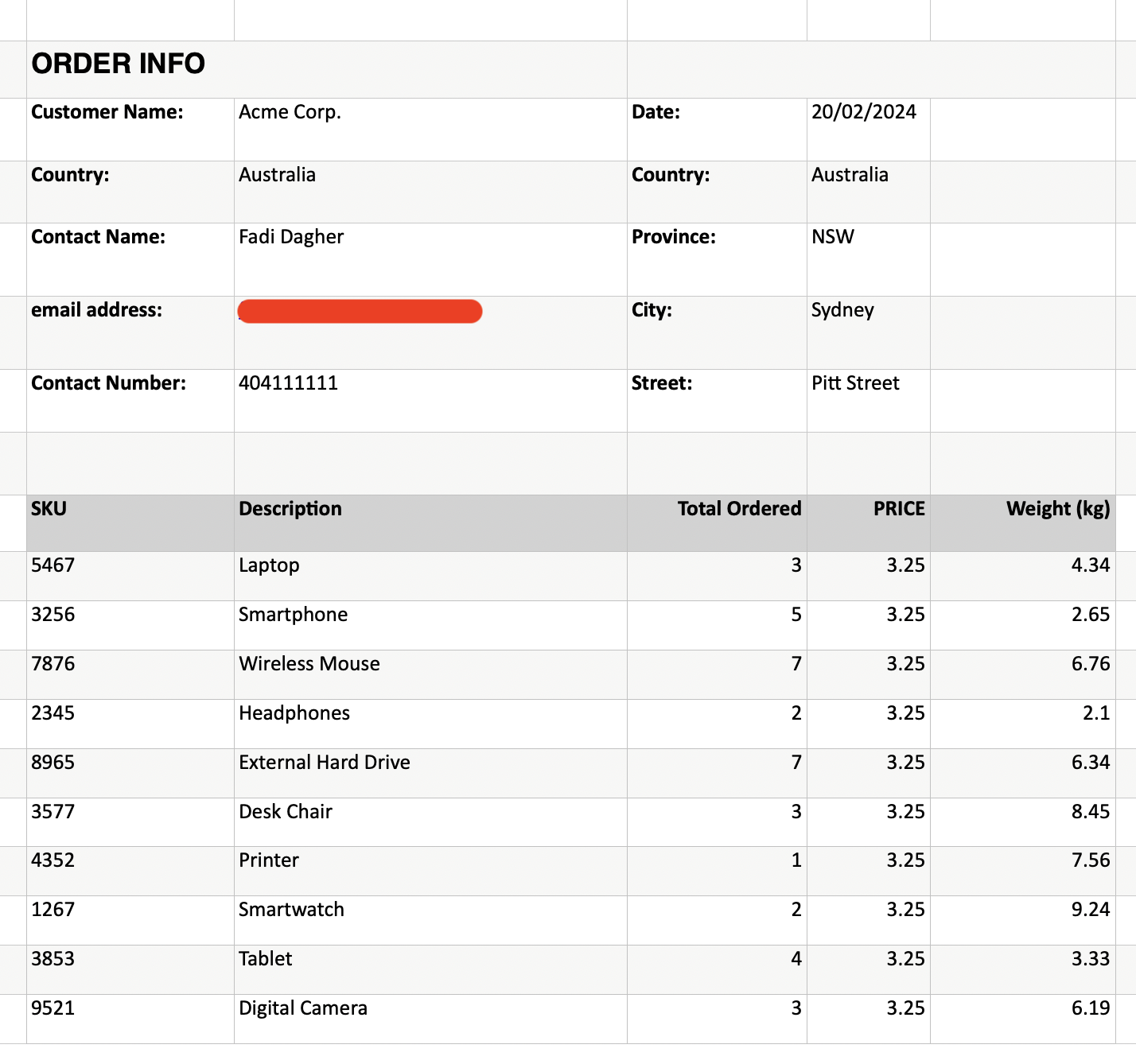
For example, consider the below order form. This consists of some header information, and then, starting at row 9, we can find the order lines information.
Step 1: Export the File
Such a file, when read by Celigo, can’t be interpreted correctly as it won’t be able to identify what are the columns it needs to look at. For example, when exporting this file, we get the below parsing, which clearly shows wrong column names

At this stage, we just make sure we group the data by a column that contains a single value so that all order lines are grouped into one record.
Step 2: Create a Parsing Script
What we need to do is create a script which “flattens” the file out. Meaning that, we take the needed header information, and project it as columns in addition to the columns we have in the details section. To do that, we create the script as follows:
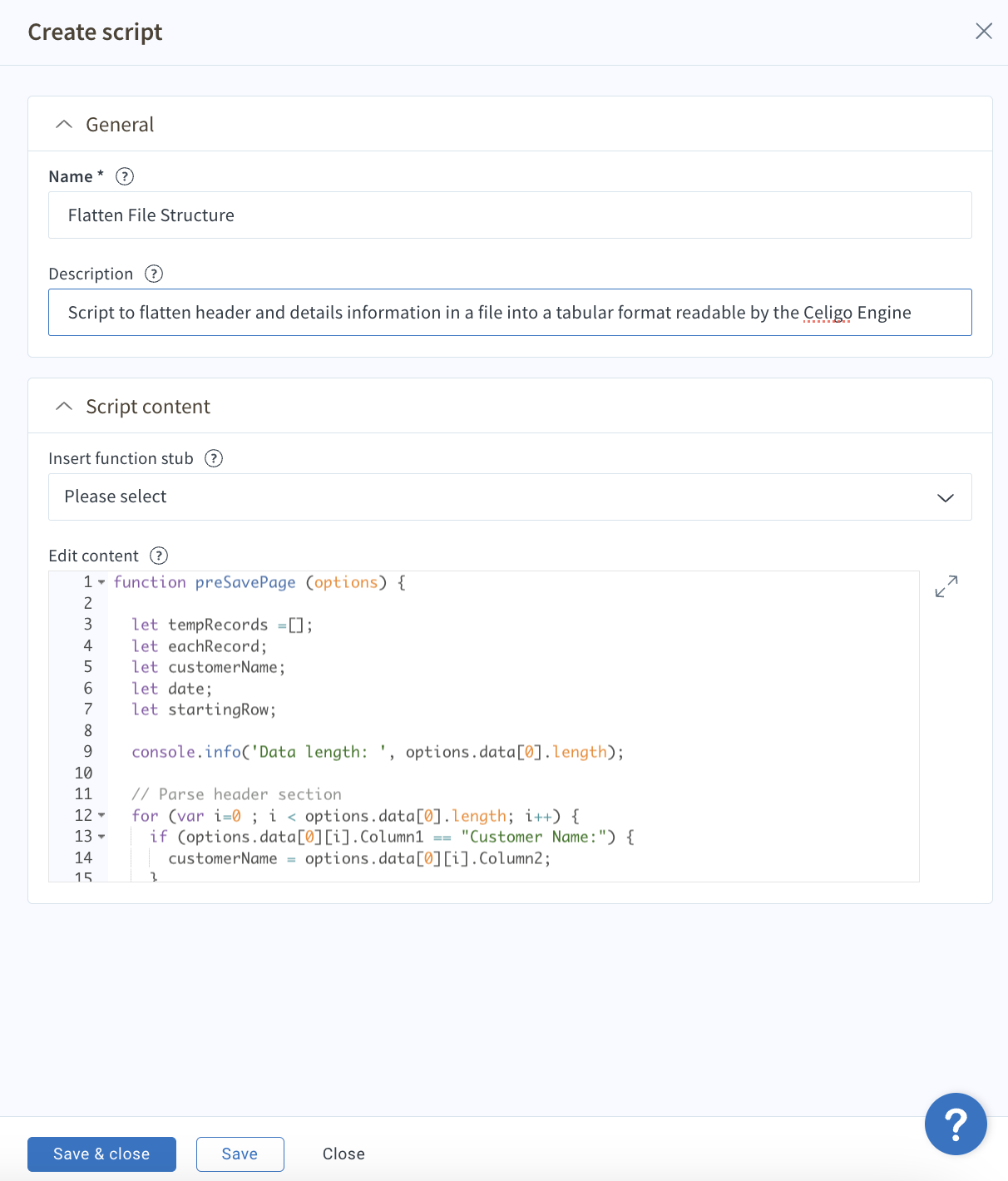
Here’s the full script. Looking closely at it, we iterate over the header rows and when we find the information we are looking for, we add it to predefined variables. Then we iterate over the details section and build an updated list which contains the header variables. Then finally we return the newly built array.
function preSavePage (options) {
  let tempRecords =[];
  let eachRecord;
  let customerName;
  let date;
  let startingRow;

  console.info('Data length: ', options.data[0].length);

  // Parse header section
  for (var i=0 ; i < options.data[0].length; i++) {
    if (options.data[0][i].Column1 == "Customer Name:") {
      customerName = options.data[0][i].Column2;
      console.info('Customer name set to: ', customerName);
    }

    if (options.data[0][i].Column3 == "Date:") {
      date = options.data[0][i].Column4;
      console.info('Date set to: ', date);
    }

    if (options.data[0][i].Column1 == "SKU") {
      startingRow = i + 1;
      break;
    }
  }
  console.info('Header Loop broke at row: ', i);
  console.info('Parsing details...');

  // Parse details section
  for (var j=startingRow ; j < options.data[0].length; j++) {
    if (options.data[0][j].Column3 > 0) {
      eachRecord = {
        "Customer Name": customerName,
        "Date": date,
        "SKU": options.data[0][j].Column1,
        "Total Ordered": options.data[0][j].Column3,
        "Price": options.data[0][j].Column4
      }
      tempRecords.push(eachRecord);
    }
  }
  options.data[0] = tempRecords;
  // pass on what has been exported
  return {
    data: options.data,
    errors: options.errors,
    abort: false,
    newErrorsAndRetryData: []
  }
}
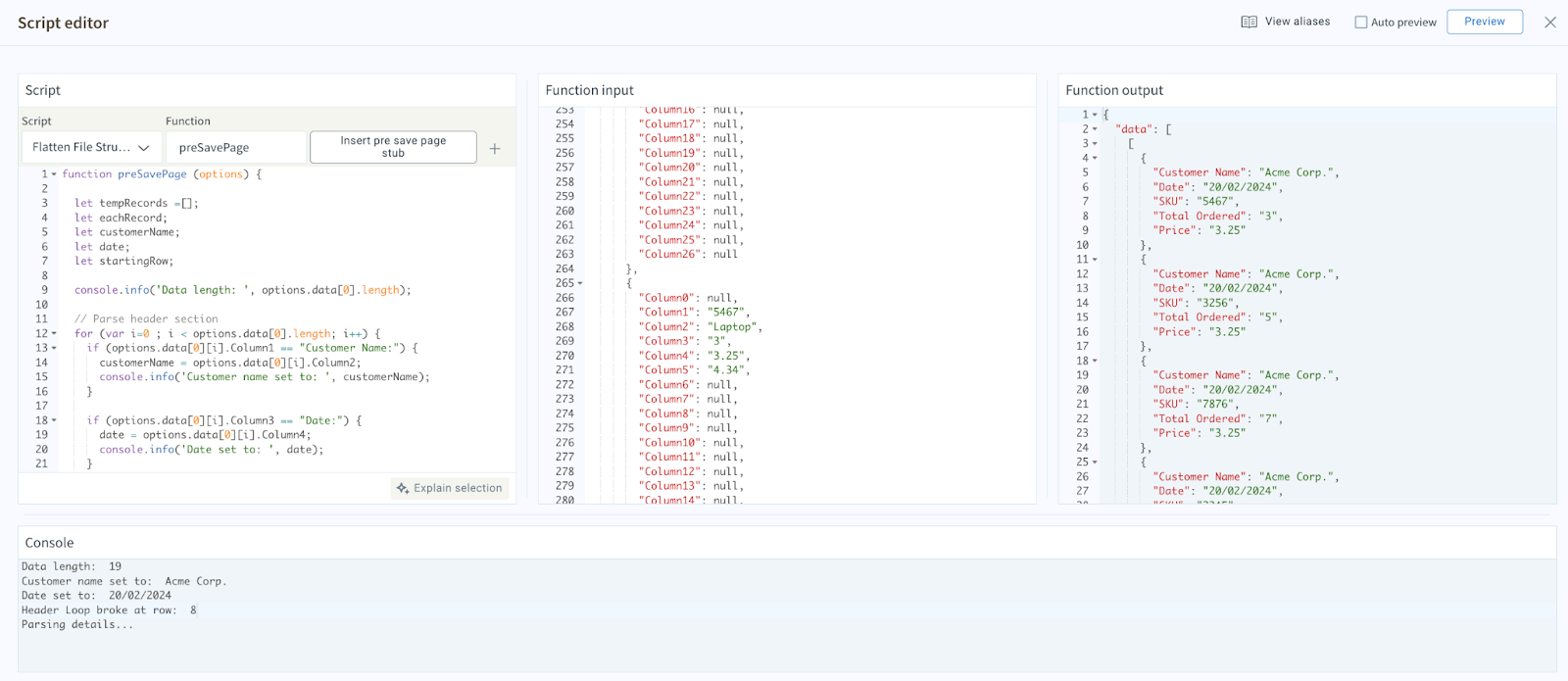
Running the script should give us the flattened output we are looking for:
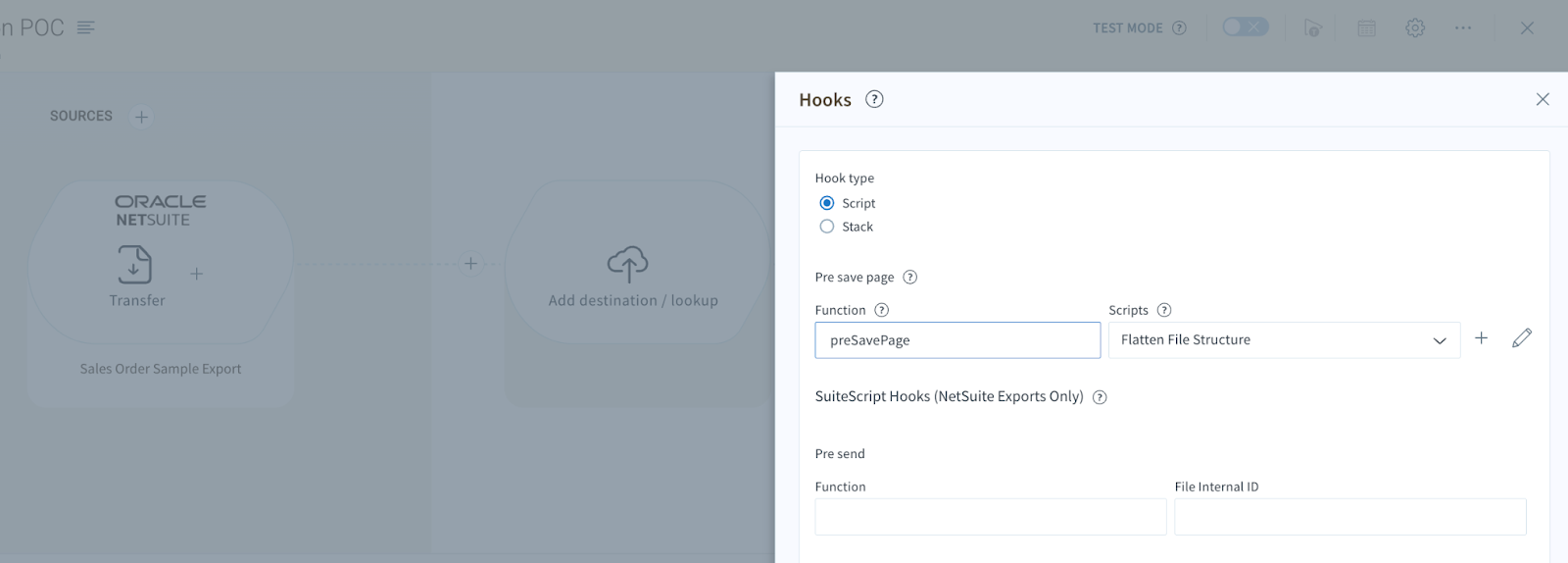
Finally, use the script in the “Pre save page” stage of the export
In the next mapping, you’ll be able to use the data as prepared in the script

Conclusion
We have seen how to overcome parsing complex file structures in Celigo using the powerful scripting capabilities provided by the platform. You can use a similar technique whenever you face such a requirement. That’s all for now, happy learning!