Now that we have implemented our solution, automated it via ARM templates and PowerShell scripts, what we need to do is put everything into a CICD pipeline, where once we do any change and commit it to the git code repository, a build kicks off, and a release is created. We’ll implement this using Visual Studio Team System (VSTS). For detailed information about VSTS and the continuous integration – continuous delivery pipeline, please visit https://docs.microsoft.com/en-us/vsts
Continuous Integration
The first step in the CICD pipeline is the CD, i.e, continuous integration. In this step, for each commit on our code, an automated build is kicked off, and any defined unit tests will run at this stage to ensure the sanity of our development.
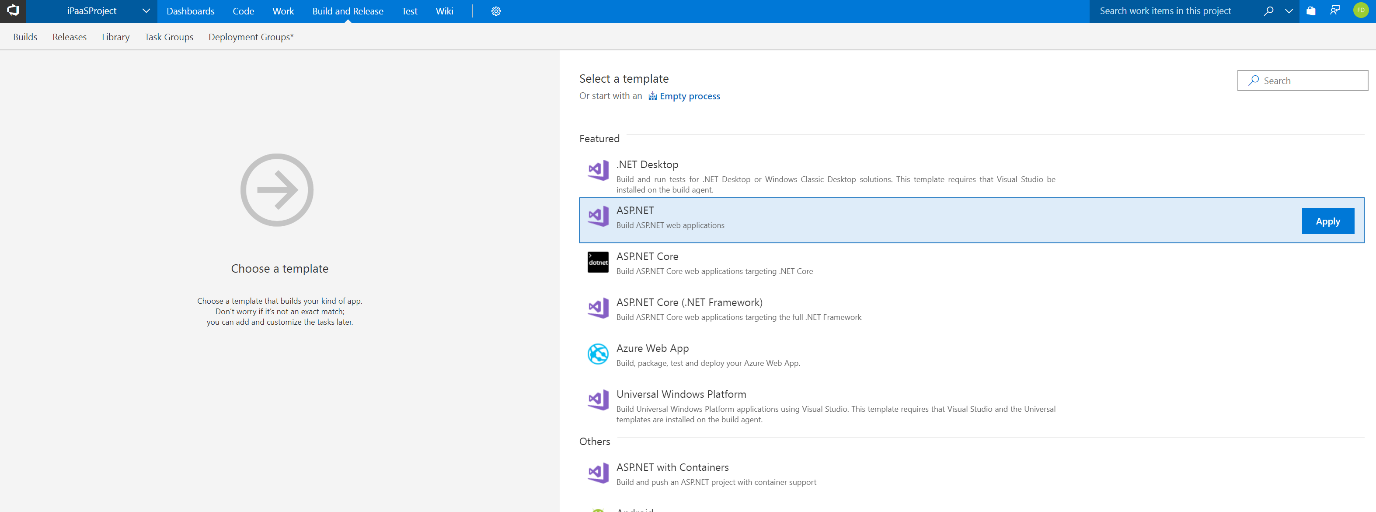
To do that, we need to create a build definition in VSTS. Let’s navigate to our project folder in VSTS and click “Set up Build” button at the centre of the screen

Select ASP.NET from the list of templates, then click “Apply”
Fill the needed information as follows:

Click on the Triggers tab and select “Enable continuous integration”. This allows the build to kick-off whenever any file in the repository changes. In the Branch specification drop box, make sure the master branch is selected.
Click the Variables tab and add a variable called environment with a value of DVT
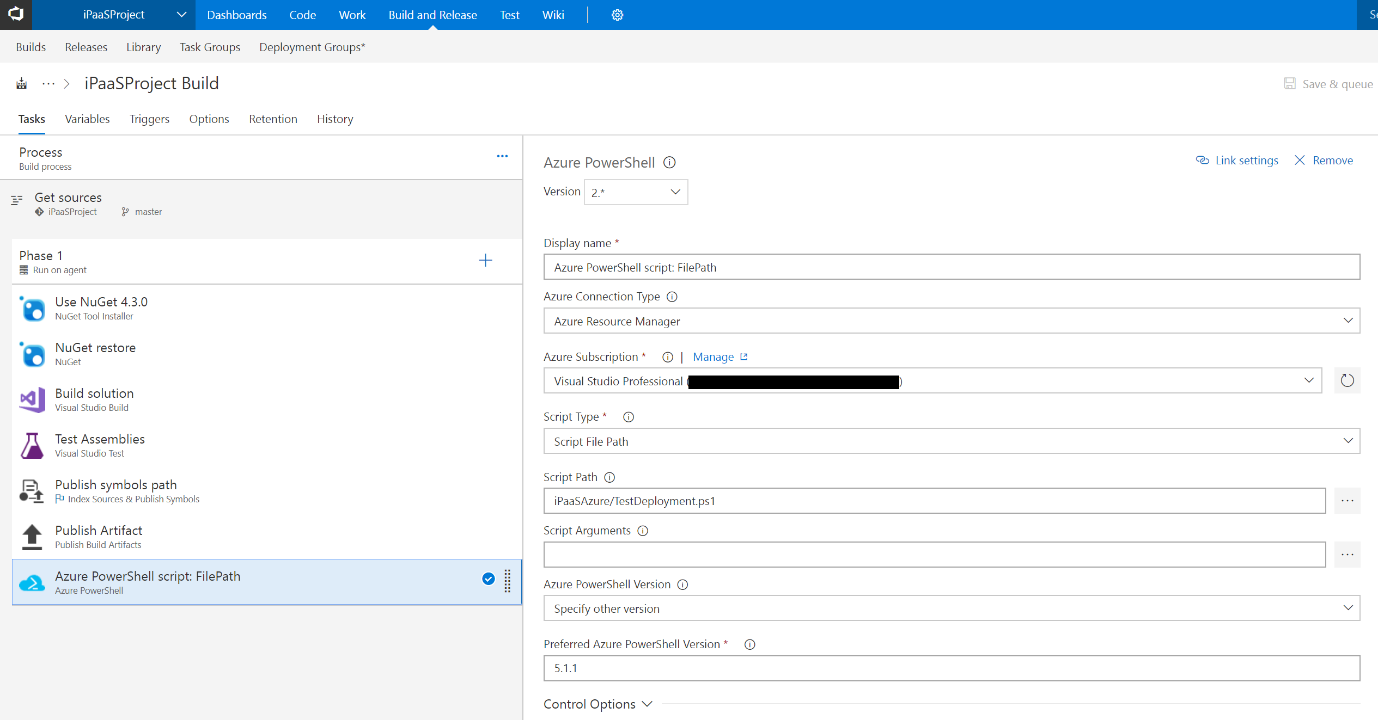
One more step to do before the CI phase is finished. Wouldn’t it be a nice thing to validate all of our PowerShell scripts during the auto build? Recall the “TestDeployment.ps1” file we created in the previous article? It’s time to run it part of our build. Let’s do that!
Click the “+” icon next to the phase to add a task. Select PowerShell and click Add. Click on the added task and set the PowerShell properties as follows:
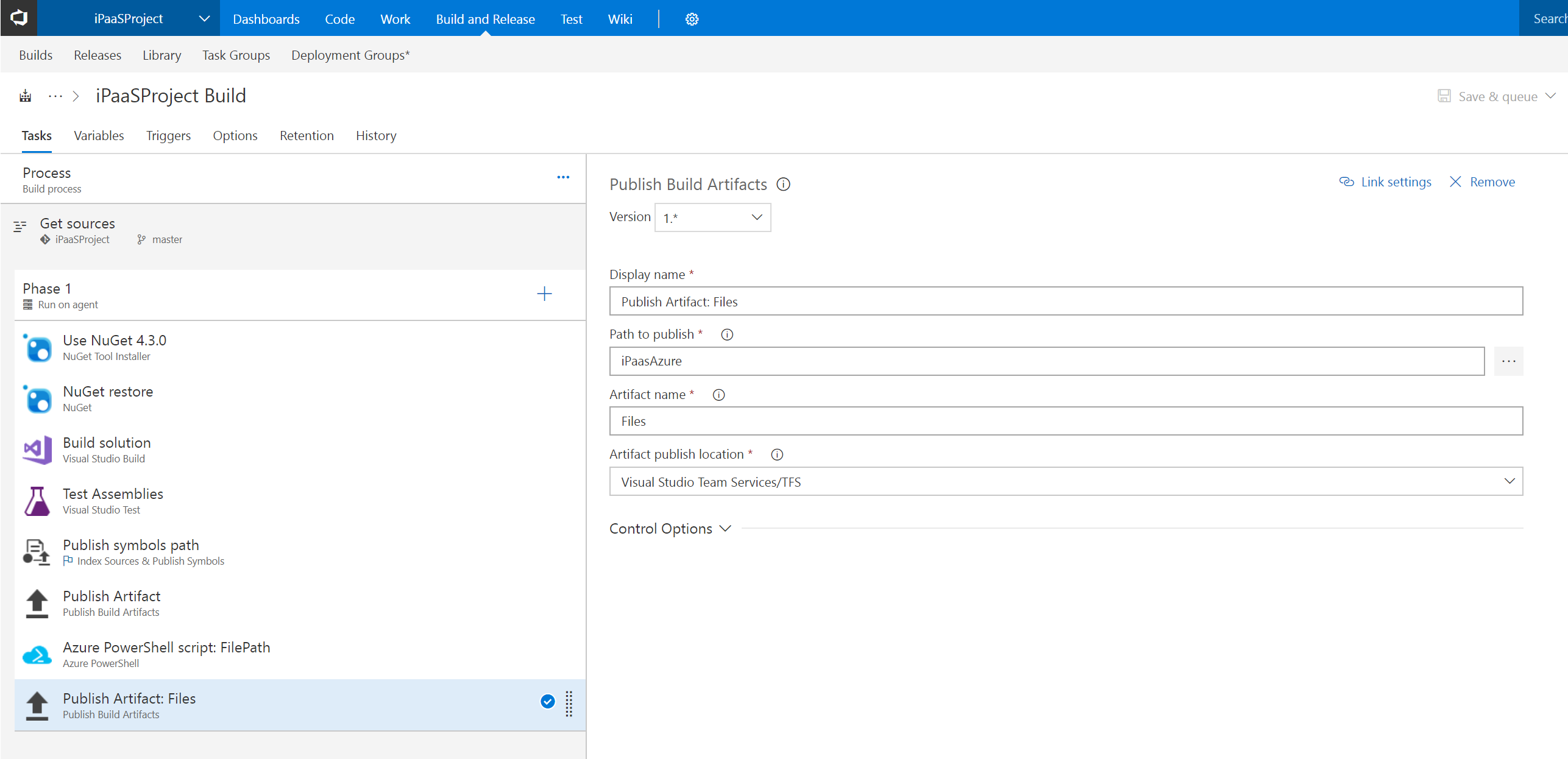
One more thing, to make the files available for the Release phase, we need to add the “Copy Publish Artifacts” task to copy the ARM templates and PowerShell scripts to the release directory to make those files accessible to the release definition, which will be defined in the next section.
To do that, click the “+” icon again and select “Copy Publish Artifacts” task. Fill the properties as follows:
Finally click “Save & Queue”, then click “Save”.
Now go back to the repository, change the TestDeployment.ps1 file to edit the locations of the ARM template files by appending: $env:BUILD_REPOSITORY_LOCALPATH\iPaaSAzure\ as this would be the parent directory of the files now. Also, change the DVT environment suffix of the resource group name to $env:environment to take the environment name from the build definition variables.
Finally, git add, commit, and push to the remote repo, then watch the build start then build successfully.
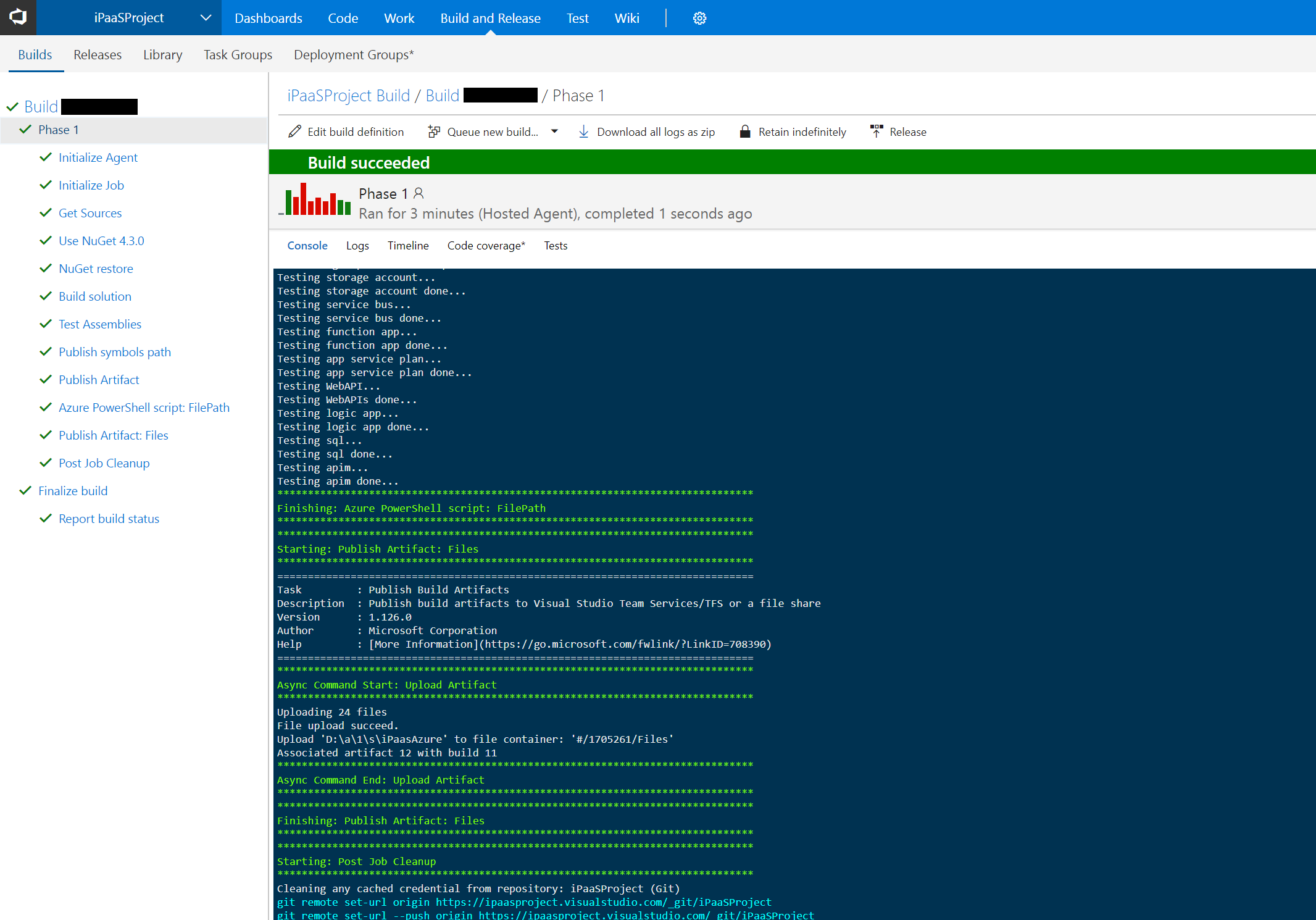
Validate the artifacts are stored in the output directory to be used by the release definition by clicking the “Artifacts” tab in the build summary screen and exploring the Files directory.
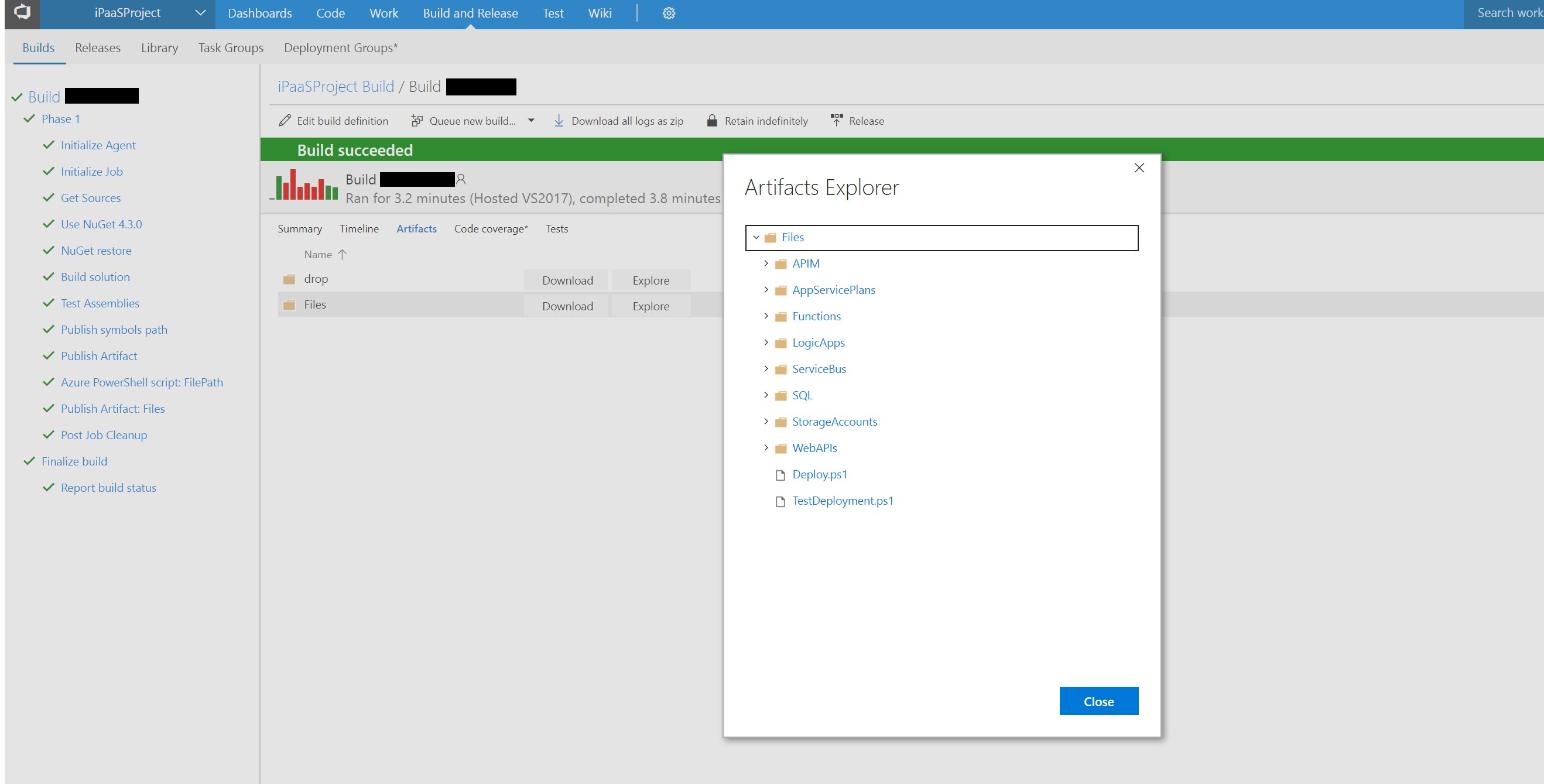
This concludes the CI part of the CICD pipeline. Next we’ll look into the CD part.
Continuous Delivery
Having successfully built our solutions, now it’s time to deploy everything to Azure. To do that, let’s start by clicking the “Release” button in the build details screen shown in the previous screenshot.
You will be shown a screen to select a release template, go on and select “Azure App Service Deployment”, then click “Apply”
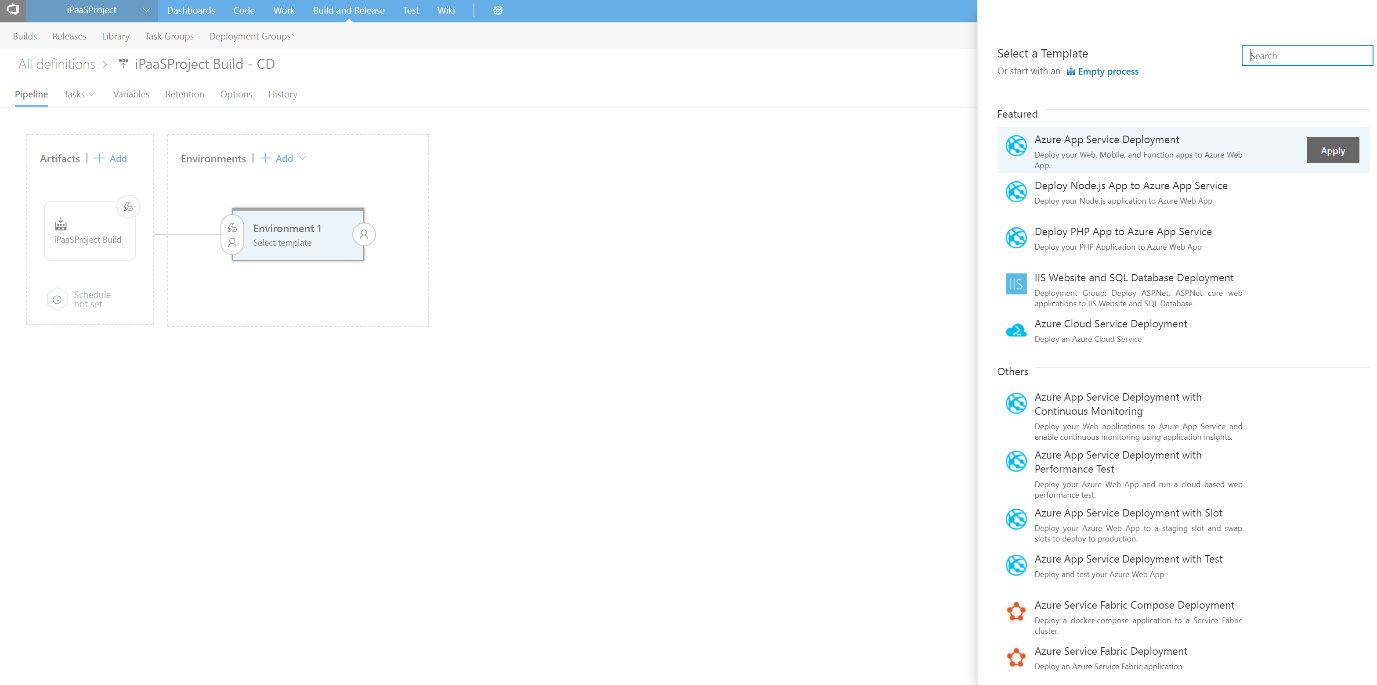
Name the environment “Development”. Click on the thunder icon of the iPaaSProject Build Artifact and include the master branch filter.
Click on the Tasks tab, select your Azure subscription, the App type as API App and the App service name to be: $(environment)ipaasentitiesapi (where environment is a variable that we’ll define next)

Click on the Variables tab and define the environment variable.
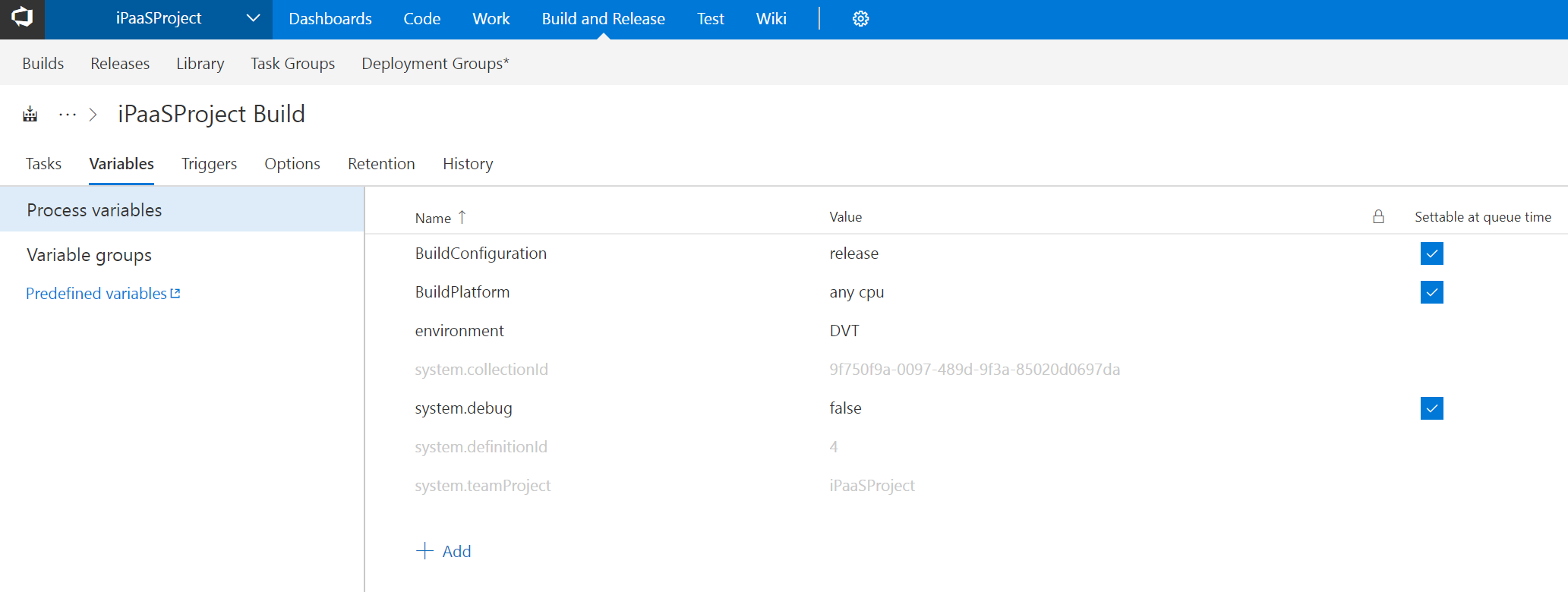
Click Save to save your changes.
Now this will not work before first creating the app service, app service plan, and also not forgetting to create all other products such as the service bus, database and all other products we created ARM templates for in the previous article. To do that, open the iPaaSProject Release definition, go to Tasks and click the “Development” environment.
Click the plus “+” icon to add a task, select “Azure Resource Group Deployment” and click “Add”
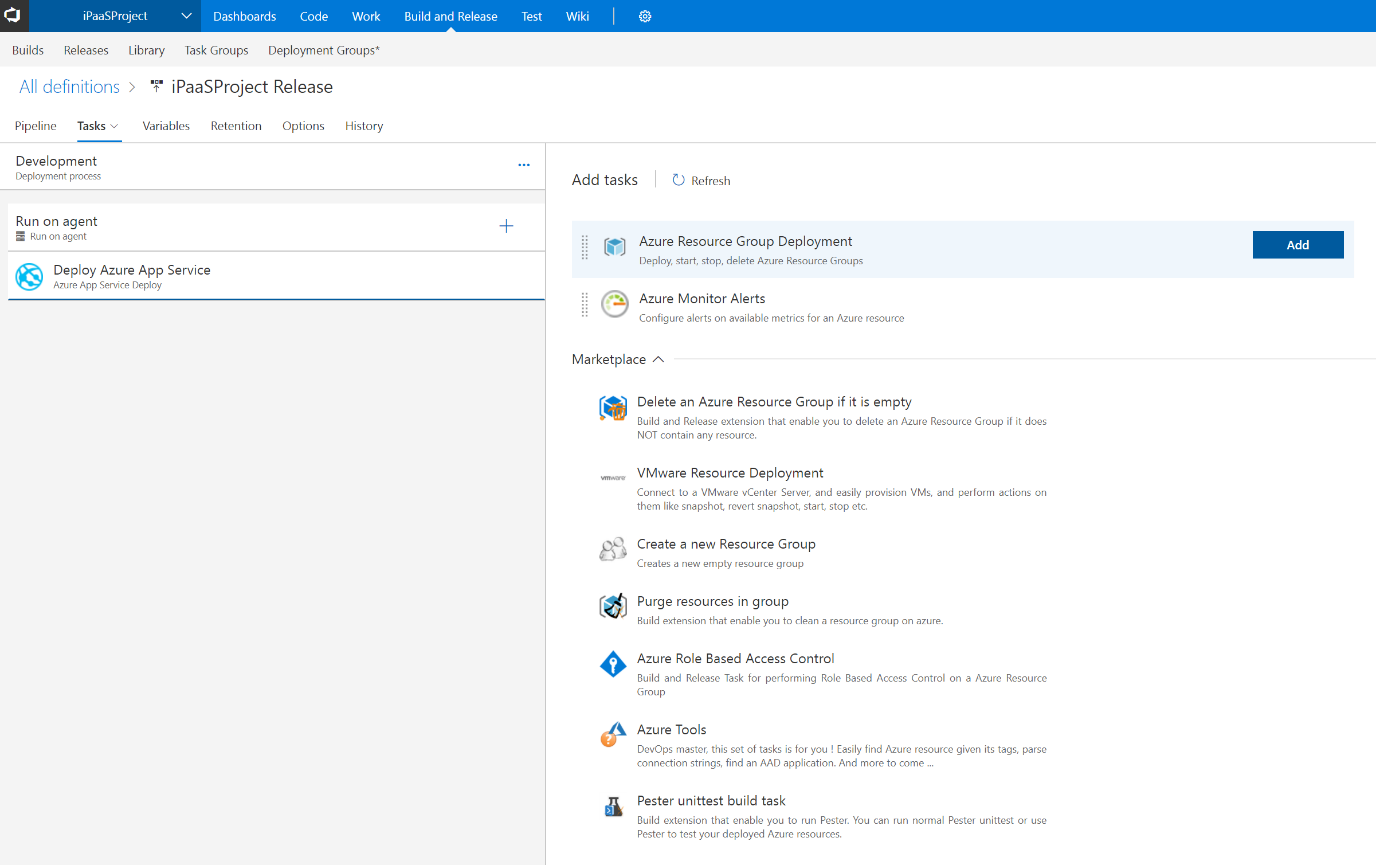
Drag the task above the “Deploy Azure App Service” task and fill the properties as follows:

PS: You can fill the “Template” and “Template Parameters” fields by clicking the ellipses button next to each field and navigating to the ARM template and its associated parameter visually.
Repeat the previous step to create all other products. You can clone the step and edit the values.
Also, add a “Deploy Azure App Service” task to deploy the Azure function app code and “Azure PowerShell” tasks to create the storage table and the SQL table (use same script we used in the previous article).

After finishing, save and trigger a build and see your complete resource group being created automatically in a CICD pipeline.

We’ve finished a major milestone in this article, deploying our full Azure based solution automatically without any manual intervention. In the next article, we’ll talk about branching and deploying through multiple environments to simulate a more realistic scenario.